Executive Summary
In today’s data-driven world, businesses hold vast amounts of information that can unlock critical insights—if analyzed effectively. Microsoft’s Power BI offers a powerful solution, transforming raw data into dynamic, visually compelling dashboards that facilitate informed decision-making. This article provides a broad overview of Power BI’s capabilities, using a short-term rental business as a practical example to illustrate how data visualization can lead to actionable intelligence and improved business outcomes.
Introduction: The Transformative Power of Data Visualization
Data is a cornerstone of modern business strategy, providing the foundation for decisions that drive growth, efficiency, and innovation. However, data in its raw form—such as what is typically found in Excel spreadsheets—can be overwhelming and difficult to interpret. Power BI revolutionizes this process by enabling businesses to visualize their data, turning complex datasets into intuitive, interactive dashboards that reveal patterns, trends, and insights at a glance. Whether you’re managing financials, tracking sales performance, or analyzing customer behavior, Power BI can transform your data into a strategic asset.
Step 1: Preparing Your Excel Data for Power BI (A Comprehensive Guide)
Before you can leverage Power BI’s advanced visualization capabilities, it’s crucial to start with well-prepared data. Clean, structured data is essential for accurate analysis and effective visualizations. Whether you’re a CEO, entrepreneur, or executive looking to harness the power of your business data, organizing your Excel data is the first step toward creating powerful insights with Power BI.
The Importance of Structured Data
In any business environment, data is collected from various sources and often comes in different formats. This could include sales figures, customer feedback, financial transactions, or operational logs. Excel is widely used for aggregating and managing this data, but how it’s structured will significantly influence the effectiveness of your Power BI visualizations.
Key Considerations for Structuring Data:
- Consistent Formatting: Ensure that similar data types, such as dates or currencies, are uniformly formatted across all records. Inconsistent formatting can cause errors during the import process, leading to inaccurate visualizations.
- Avoiding Empty Rows and Columns: Blank rows or columns can disrupt the data model in Power BI. Removing these gaps is essential for ensuring smooth data analysis and visualization.
- Unique Identifiers: Assign unique identifiers (e.g., IDs for customers, transactions, or properties) to each record. This practice prevents confusion and enables precise data linkage within Power BI, facilitating more detailed and accurate analyses.
- Data Cleansing: Regularly cleanse your data to remove duplicates, correct errors, and standardize values. Clean data ensures that your visualizations reflect accurate and reliable insights.
For deeper insights on the Importance of Data Quality, check this post.
Example Scenario: Short-Term Rental Business
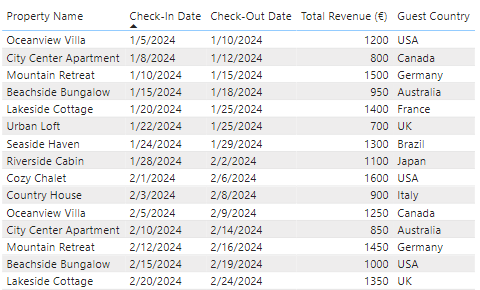
To better understand the importance of data preparation, let’s consider a practical example. Imagine you manage a portfolio of short-term rental properties and track your business metrics in Excel. Your dataset includes the following columns:
- Property Name: The names of your rental properties (e.g., “Oceanview Villa,” “City Center Apartment”).
- Check-In Date: The date guests check in to the property.
- Check-Out Date: The date guests check out.
- Total Revenue: The revenue generated from each booking, in your local currency.
- Guest Country: The country of origin for each guest (e.g., “USA,” “Canada,” “Germany”).
This data can provide valuable insights when visualized, helping you optimize your business strategy. However, to fully leverage these insights in Power BI, you must first ensure that your Excel data is properly structured.
Steps to Prepare Your Excel Data:
- Create a Clean Table Structure:
- Organize your data into a table format within Excel. Each column should have a clear header, and every row should represent an individual record. For example, each row could correspond to a specific booking, capturing all relevant details.
- Standardize Date Formats:
- Ensure that the “Check-In Date” and “Check-Out Date” columns are consistently formatted as dates in Excel. Power BI relies on this consistency to create accurate time-based visualizations, such as trend lines or seasonal analysis.
- Ensure Consistent Revenue Entries:
- Format the “Total Revenue” column as a number or currency. Consistency in this column is crucial, as any missing values or outliers could skew your visualizations.
- Categorize Guest Information:
- For the “Guest Country” column, use standard country codes or consistent country names to avoid discrepancies. This standardization will help Power BI accurately map and visualize geographic data.
- Add Calculated Columns if Needed:
- Consider adding calculated columns in Excel, such as the duration of stay (calculated by subtracting the check-in date from the check-out date) or the average revenue per day. These pre-calculations can simplify the visualization process in Power BI.
- Review and Clean Data:
- Before importing your Excel file into Power BI, review the data for anomalies, such as duplicate entries or missing information. Clean data will ensure that your visualizations are accurate and meaningful.
Importing Your Data in Power BI
Once your Excel data is organized and structured, you’re ready to import it into Power BI. Here’s how to do it effectively:
- Import Your Data:
- Open Power BI Desktop and select “Home” > “Get Data” > “Excel.” Choose the relevant sheet or table containing your prepared data.
- Validate Data Integrity:
- After importing, validate the data within Power BI. Ensure all fields are correctly imported and that dates, numbers, and text are appropriately categorized. Power BI automatically detects data types, but it’s crucial to verify them to avoid issues in your visualizations.
- Create Relationships:
- If your data includes multiple tables (e.g., separate tables for guest details and property information), you can create relationships between these tables within Power BI. This step is essential for cross-referencing data across different dimensions, enabling more complex analyses and richer visualizations.
Step 2: Creating Visualizations in Power BI
With your data prepared and imported, it’s time to start creating visualizations that will help you uncover actionable insights. Using our short-term rental business as an example, here’s how you can leverage Power BI to gain a deeper understanding of your operations:
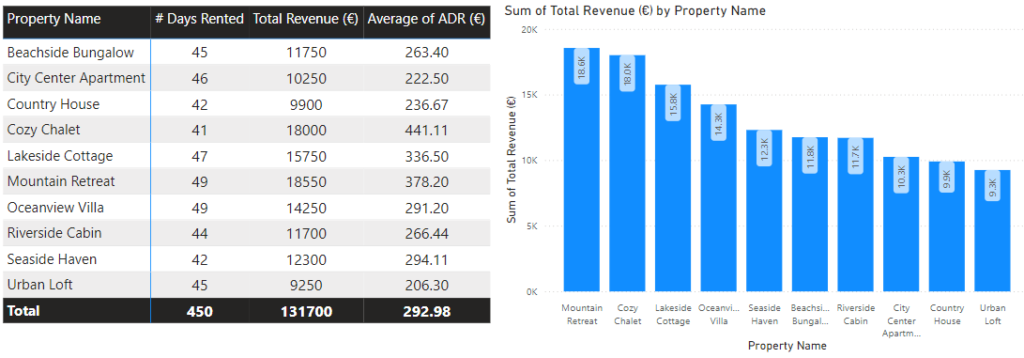
1. Revenue by Property
- Objective: Identify which properties are the most profitable.
- How-To: Use a Bar Chart to display “Property Name” on the X-axis and “Total Revenue” on the Y-axis. This visualization provides a clear view of which properties generate the most income, helping you focus your efforts on high-performing assets.
2. Booking Trends Over Time
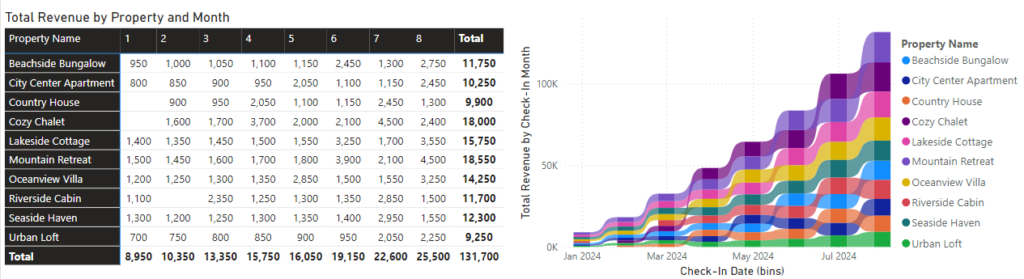
- Objective: Identify seasonal trends or peak booking periods.
- How-To: Create a Line Chart with “Check-In Date” on the X-axis and “Total Revenue” on the Y-axis. This visualization allows you to track revenue patterns over time, revealing peak seasons and slower periods, which can inform your pricing and marketing strategies.
3. Geographic Distribution of Guests
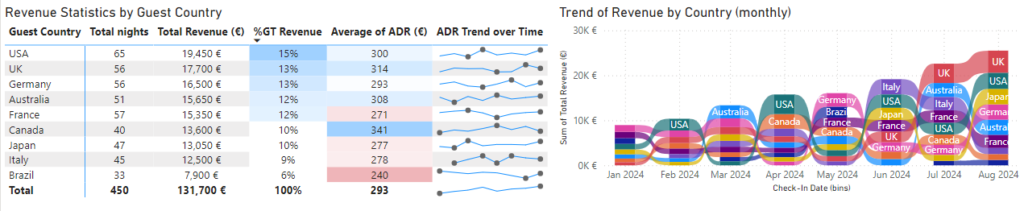
- Objective: Discover where your guests are coming from.
- How-To: Utilize a Map Visualization by dragging “Guest Country” to the location field and “Total Revenue” to values. This map provides a geographic breakdown of your guest origins, offering insights that can guide targeted marketing efforts and expansion strategies.
4. Occupancy and Performance Metrics
- Objective: Monitor key performance indicators (KPIs) such as occupancy rates and revenue goals.
- How-To: Use a Gauge to track occupancy rates by comparing booked days to total available days. This visualization gives you a quick overview of how well your properties are performing, allowing you to make adjustments to improve occupancy and revenue.
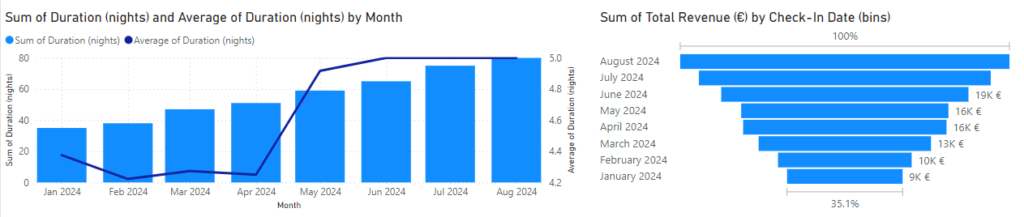
Step 3: Building a Comprehensive Dashboard
Power BI enables you to bring together multiple visualizations into a single, cohesive dashboard. This allows you to monitor all critical aspects of your business from one centralized location. Here’s how to build an effective dashboard:
- Select Key Visualizations: Choose the most relevant charts and graphs that offer the greatest insights into your business performance. Arrange them on a single dashboard page for easy access and analysis.
- Customize the Dashboard: Use Power BI’s design tools to format your dashboard, ensuring that it’s not only functional but also visually appealing. Customization options include color schemes, font styles, and layout adjustments, which can enhance the user experience.
- Collaborate and Share: Once your dashboard is complete, publish it to Power BI Service. This allows your team to access it in real-time, facilitating collaboration and data-driven decision-making across your organization.
Conclusion: Transforming Data into Strategic Decisions with Power BI
Power BI is more than just a data visualization tool; it’s a gateway to transforming how businesses operate and make decisions. By turning raw data into clear, actionable insights, Power BI empowers organizations to identify opportunities, mitigate risks, and optimize operations.
The ability to create intuitive, interactive visualizations that reveal hidden patterns and trends can drive significant improvements in both day-to-day management and long-term strategic planning. As demonstrated through the short-term rental business example, Power BI’s versatility and depth make it an invaluable asset for any industry.
By integrating Power BI into your business processes, you’ll not only enhance your data analysis capabilities but also foster a culture of continuous improvement and innovation. Whether you’re managing a complex portfolio or simply looking to gain better insights into your operations, Power BI offers the tools you need to stay ahead in a competitive marketplace.
Embark on your Power BI journey today and unlock the full potential of your data, transforming it into a dynamic engine for growth and success.
Download our Full Guide here:
FAQs
1. What is Power BI, and why is it important for businesses?
Power BI is a powerful business intelligence tool by Microsoft that allows businesses to analyze and visualize their data through interactive dashboards and reports. It’s important because it transforms raw data into actionable insights, enabling businesses to make data-driven decisions that enhance efficiency, improve customer experiences, and drive growth.
2. How does Power BI help in managing short-term rental properties?
Power BI helps in managing short-term rental properties by allowing property managers to visualize key metrics such as occupancy rates, revenue trends, and guest demographics. By integrating data from multiple sources, Power BI provides a comprehensive view of property performance, enabling managers to optimize pricing, improve marketing strategies, and enhance guest satisfaction.
3. What are the key steps in preparing data for Power BI?
Preparing data for Power BI involves several key steps:
- Data Cleaning: Remove duplicates, correct errors, and standardize formats.
- Data Structuring: Organize data into a table format with clear headers.
- Formatting: Ensure consistent formatting of dates, numbers, and text.
- Validation: Review data for anomalies and ensure accuracy.
- Creating Relationships: Establish links between different data tables if applicable.
Properly prepared data ensures that Power BI visualizations are accurate and meaningful, leading to better business insights.
4. Can Power BI handle large datasets from multiple sources?
Yes, Power BI can handle large datasets from multiple sources. It supports a wide range of data connectors, including Excel, SQL Server, cloud-based sources, and more. Power BI’s robust data processing capabilities allow it to manage and visualize large, complex datasets efficiently, making it a versatile tool for businesses of all sizes.
5. How can I share my Power BI dashboard with my team?
You can share your Power BI dashboard with your team by publishing it to the Power BI Service. Once published, you can grant access to specific users or groups within your organization. Additionally, Power BI allows for real-time collaboration, enabling your team to view, interact with, and contribute to the dashboard, ensuring everyone stays informed and aligned.
6. Is Power BI suitable for small businesses?
Yes, Power BI is suitable for small businesses. Its user-friendly interface and scalable features make it accessible to businesses of all sizes. Small businesses can use Power BI to track key performance indicators, monitor financial health, and gain insights into customer behavior, helping them make informed decisions without the need for a large IT infrastructure.
7. What are the different types of visualizations available in Power BI?
Power BI offers a variety of visualizations, including bar charts, line charts, pie charts, maps, gauges, and more. Each type of visualization is designed to present data in a way that’s easy to understand and interpret. Users can choose the most appropriate visualization type based on the data they want to analyze and the insights they wish to uncover.
8. How does Power BI integrate with other Microsoft tools?
Power BI integrates seamlessly with other Microsoft tools like Excel, Azure, SharePoint, and Teams. This integration allows users to easily import data from Excel, use Azure for advanced data analytics, share reports through SharePoint, and collaborate on dashboards within Teams. The interoperability of Power BI with Microsoft’s ecosystem enhances productivity and collaboration across the organization.
9. Can Power BI be used for real-time data analysis?
Yes, Power BI can be used for real-time data analysis. By connecting to real-time data sources like streaming data from IoT devices, social media feeds, or financial markets, Power BI can update dashboards and reports in real-time. This capability allows businesses to monitor live metrics and respond quickly to changing conditions.
10. What are the benefits of using Power BI over traditional reporting tools?
The benefits of using Power BI over traditional reporting tools include:
- Interactive Visualizations: Power BI provides dynamic, interactive reports that allow users to drill down into data for deeper insights.
- Ease of Use: Its user-friendly interface enables non-technical users to create complex reports without coding.
- Integration: Power BI integrates with a wide range of data sources and other Microsoft products, enhancing data accessibility and collaboration.
- Scalability: Power BI is scalable, making it suitable for both small and large businesses.
- Cost-Effective: Power BI offers a range of pricing options, including a free version, making it a cost-effective solution for many organizations.
These advantages make Power BI a superior choice for modern businesses seeking to leverage data for strategic decision-making.